Printing Event Name Tags #
For certain events (most notably Away Day, but also e.g. conferences), you may find that you need to print name tags for attendees.
Step 1: Prepare the printouts #
Mathison contains a Name badges template for creating name tags which fit the printer paper. This template is in Word. To use it, save a local copy, and use mail merge to create the name tags. These can then be saved as a .pdf file for printing. An example can be found in the REG Sharepoint folder under AwayDay-2025.
Step 2: Print the tags #
This is the most complicated bit, because it involves printers.
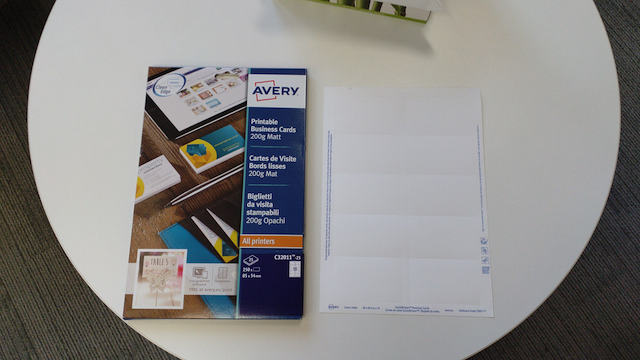
You will need to obtain A4 perforated paper which can be fed into the bypass tray of a printer. The paper looks like this:
This paper can be found in a cupboard near the 1st floor printer (if in doubt, ask any members of the Facilities team).
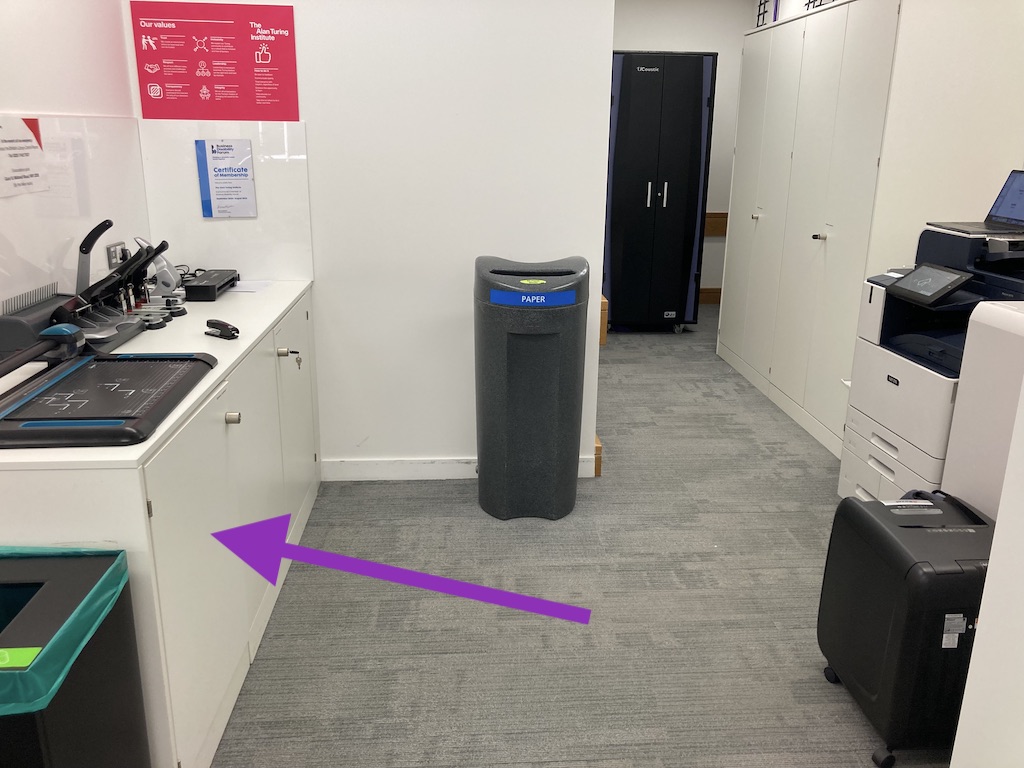
You can use any of the printers in the Turing for this, as long as they are working.
First, load the perforated paper into the bypass tray, face down, and with the long edge of the paper facing into the printer. (It doesn’t matter which way round the paper is rotated, because it is symmetrical.)
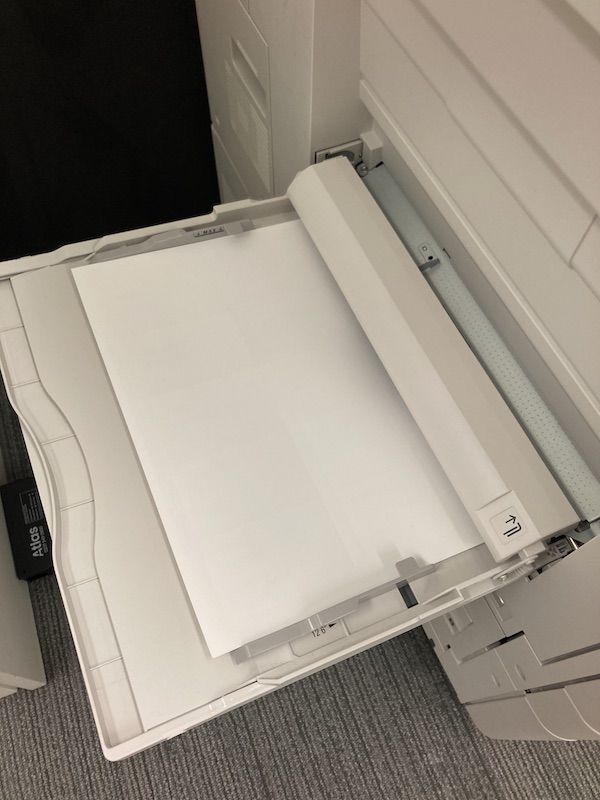
When you do this, there will be a dialogue box that pops up on the printer screen. On this screen, select ‘A4’ as the paper size and ‘Cardstock’ as the paper type.
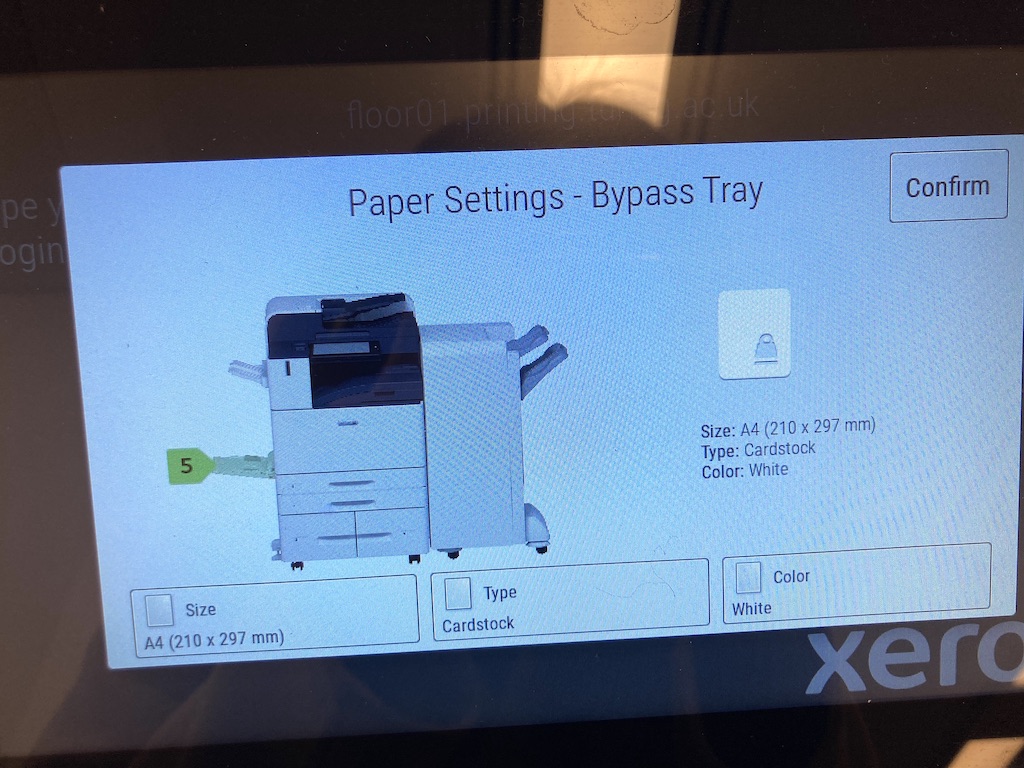
Then, open the name tags document. In the printing dialog box, select the printer you’re using, Make sure to disable double-sided printing, then scroll down to the ‘Paper Feed’ and ‘Printer Features’ sections.
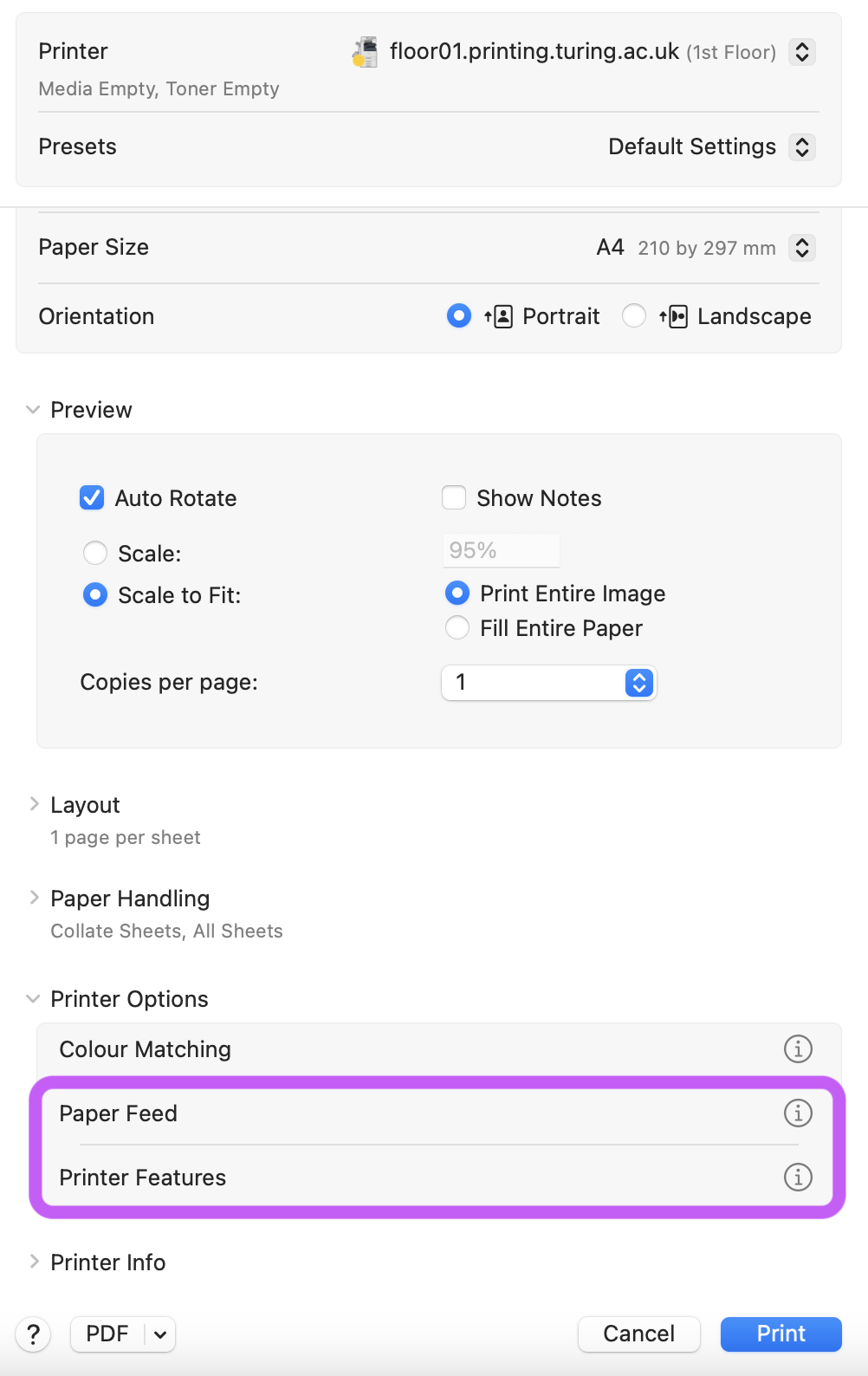
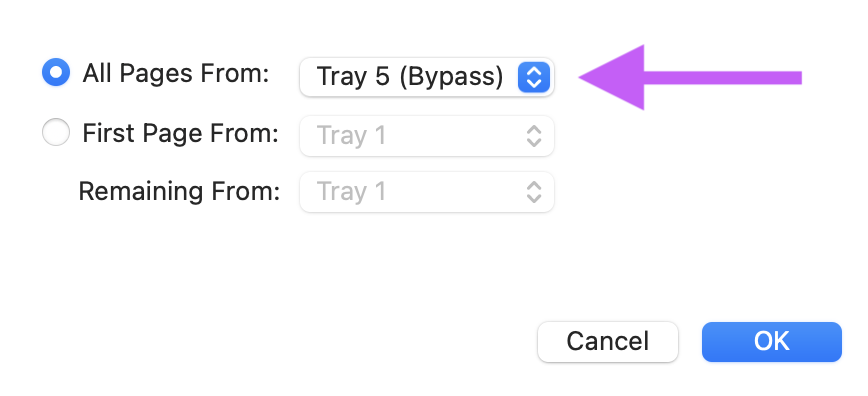
Under ‘Paper Feed’, select ‘Tray 5 (Bypass)’.
And under ‘Printer Features’, specify ‘Cardstock’ as the paper type.
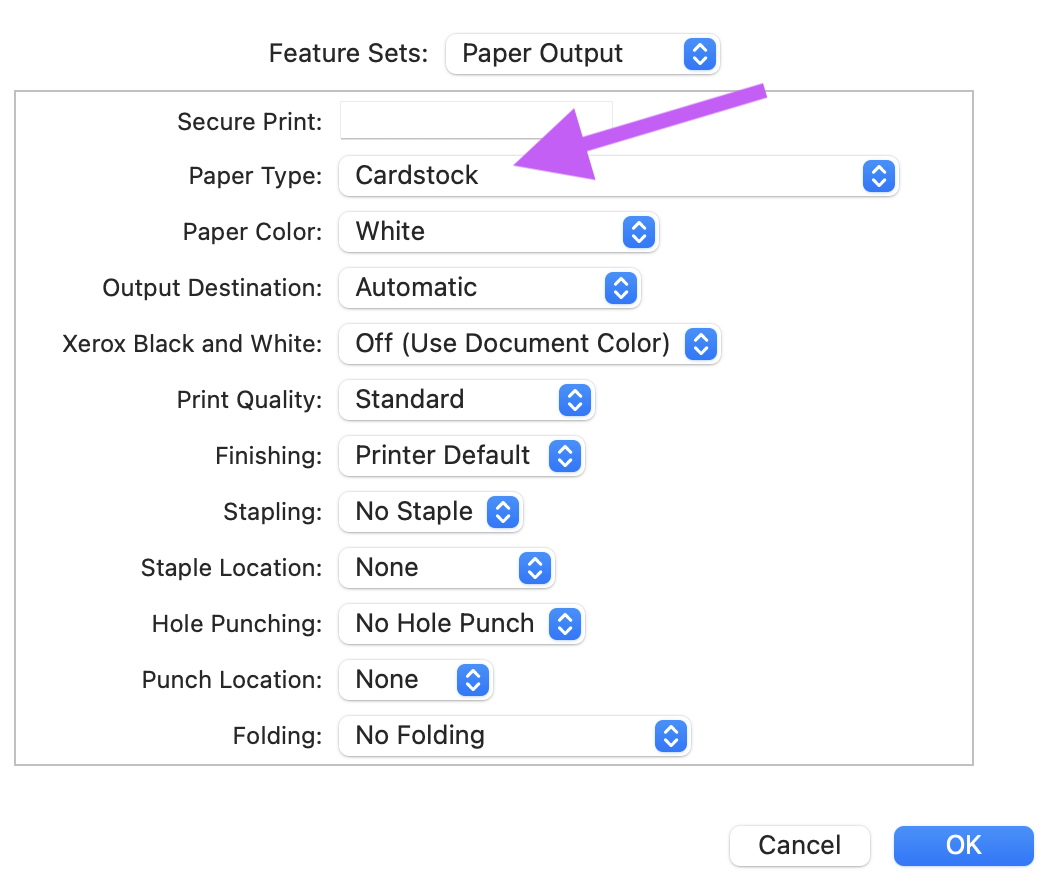
Then, click print, and the name tags should print out.
Step 3: Obtain the name tag holders #
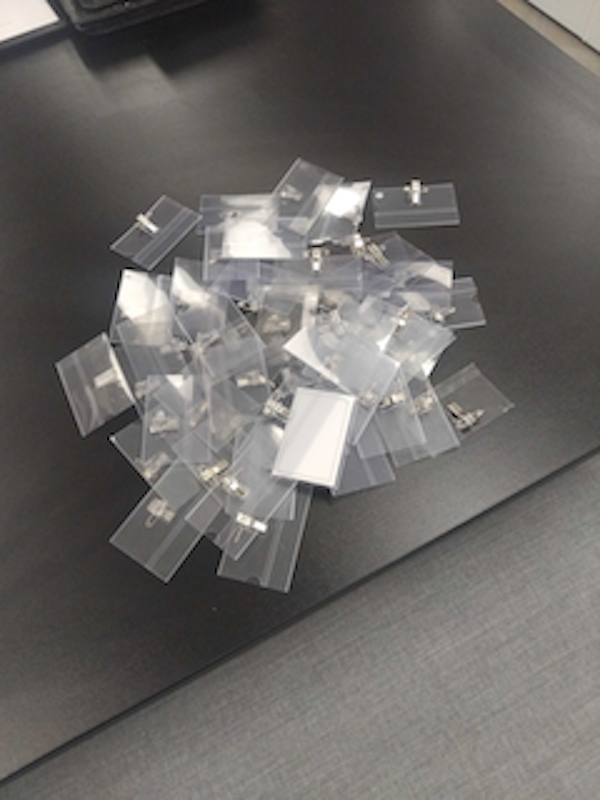
Empty name tag holders can be obtained from the Turing’s Events team.
Simply drop them an email (events at turing.ac.uk) telling them how many you need and when you need them by.
They look like this:
Step 4: Assemble the name tags #
Just press the name tags out from the perforated paper and insert them into the name tag holders.