Interactive Technique Finder
A guided wizard to help you discover the right techniques for your AI assurance needs
Overview
The Interactive Technique Finder is a guided wizard that helps you discover the most relevant techniques for your specific AI assurance needs. Instead of manually browsing through all techniques, the wizard asks you a series of targeted questions about your project, model, and requirements, then recommends techniques that match your context.
How It Works
The wizard uses an intelligent filtering system that:
- Adapts to your answers - Each question narrows down the available techniques based on your previous responses
- Shows result counts - Every option displays how many techniques match, helping you make informed decisions
- Provides flexibility - You can choose different starting points based on what you know about your project
- Hides irrelevant options - Options with no matching techniques are hidden by default (with a toggle to show them)
Getting Started
Accessing the Wizard
You can launch the wizard from any page on the TEA Techniques site by clicking the "Find the Right Technique" button in the sidebar.
Choosing Your Starting Point
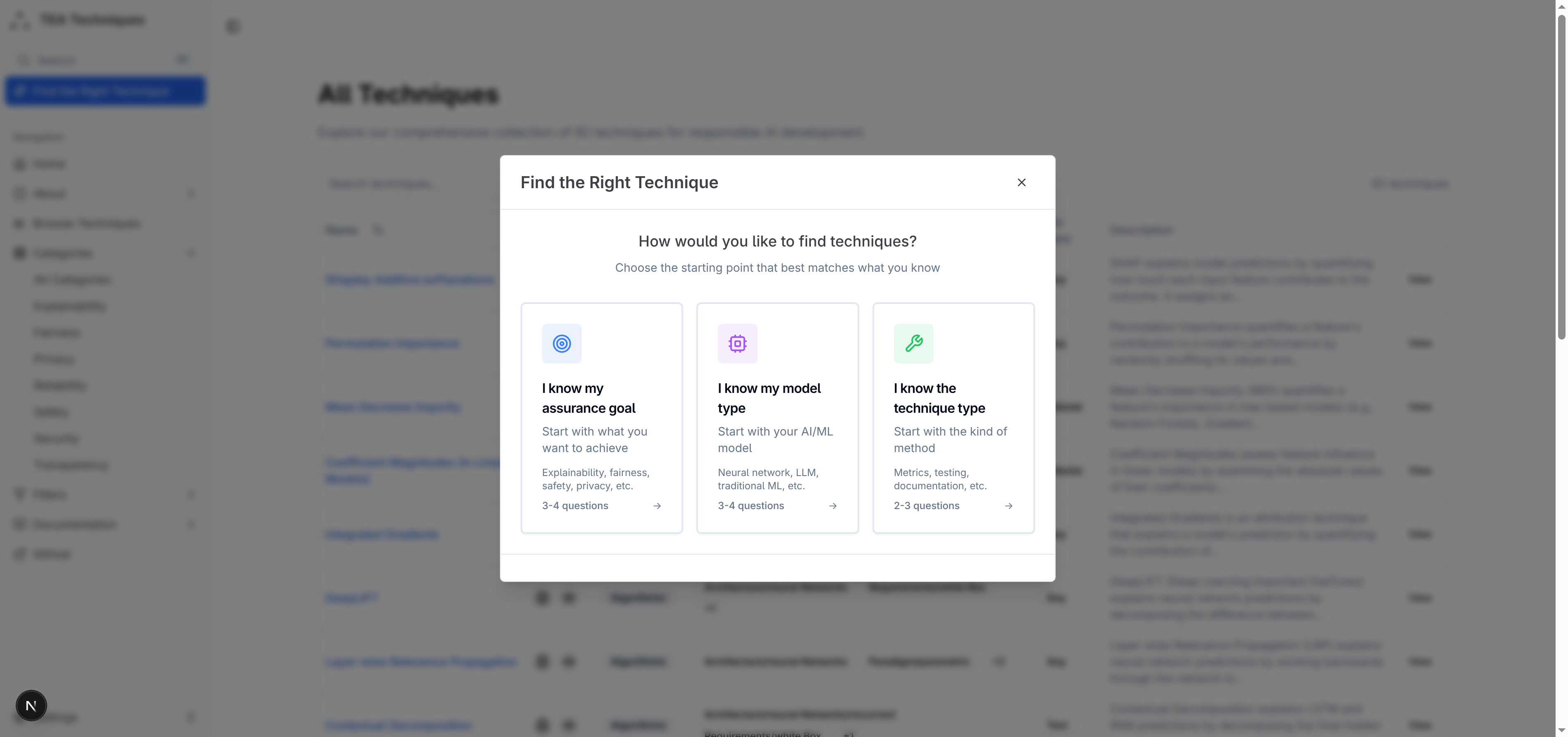
The wizard offers three entry points tailored to different starting contexts:
I know my assurance goal
Start here if you know what you want to achieve (e.g., explainability, fairness, safety).
Best for: Requirements-driven projects
I know my model type
Start here if you know your AI/ML model architecture (e.g., LLM, neural network, tree-based).
Best for: Technical implementation contexts
I know the technique type
Start here if you know what kind of method you need (e.g., metrics, testing, documentation).
Best for: Methodology-focused searches
Answering Questions
As you progress through the wizard, you'll encounter different types of questions:
Single-Select Questions
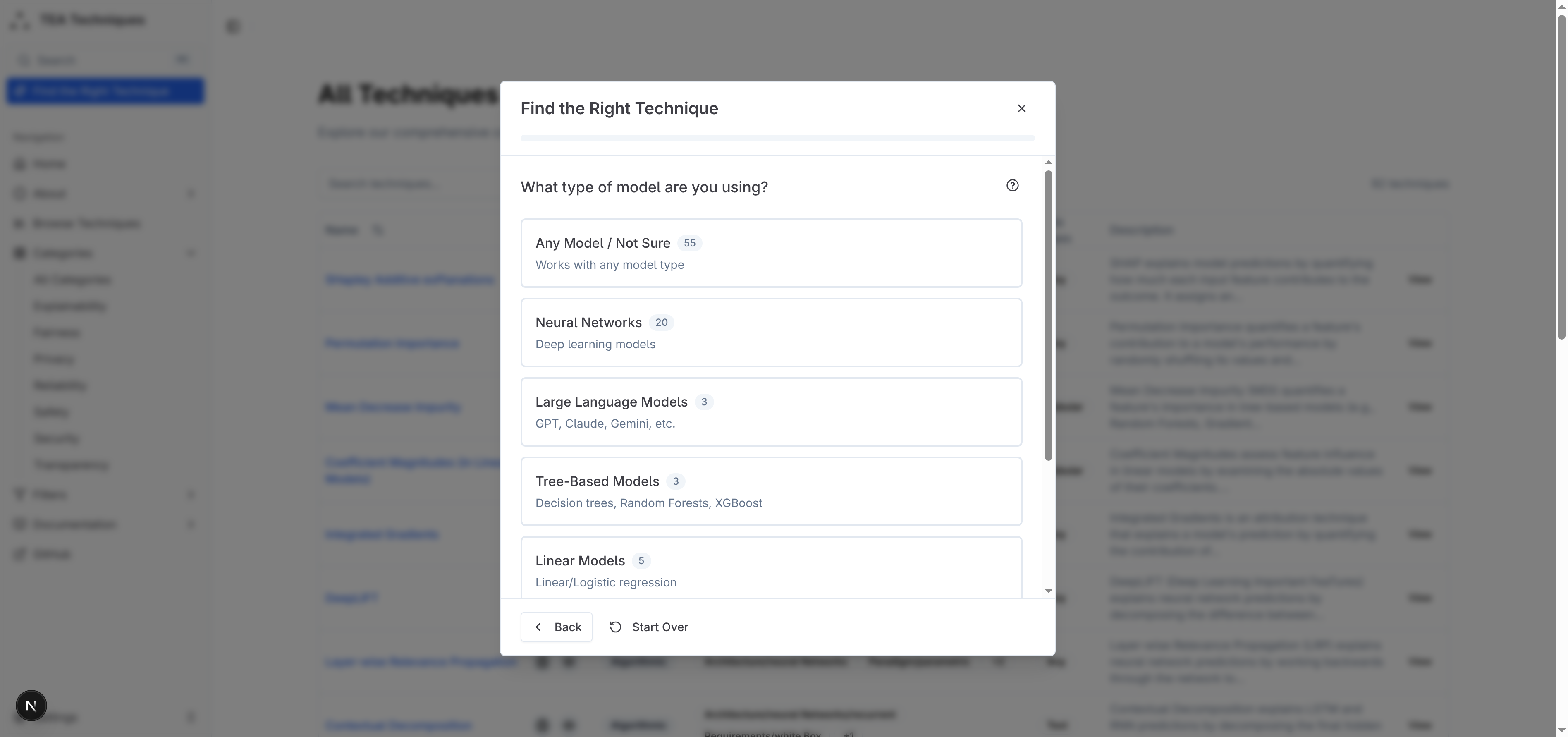
Most questions ask you to choose one option from a list. Simply click on your preferred option to proceed automatically to the next question.
Key features:
- Result counts - Each option shows how many techniques match (e.g., "Neural Networks 20")
- Descriptions - Brief explanations help you understand each option
- Progress indicator - A progress bar at the top shows how far through the wizard you are
- Options filtering - Options with no results are automatically hidden (toggle available to show all)
Multi-Select Questions
Some questions allow you to select multiple options. After making your selections, click the "Next" button to continue.
"Not Sure" Options
Many questions include a "Not sure" or "Doesn't matter" option. Selecting this keeps all techniques that don't have specific requirements for that criterion.
Understanding Results
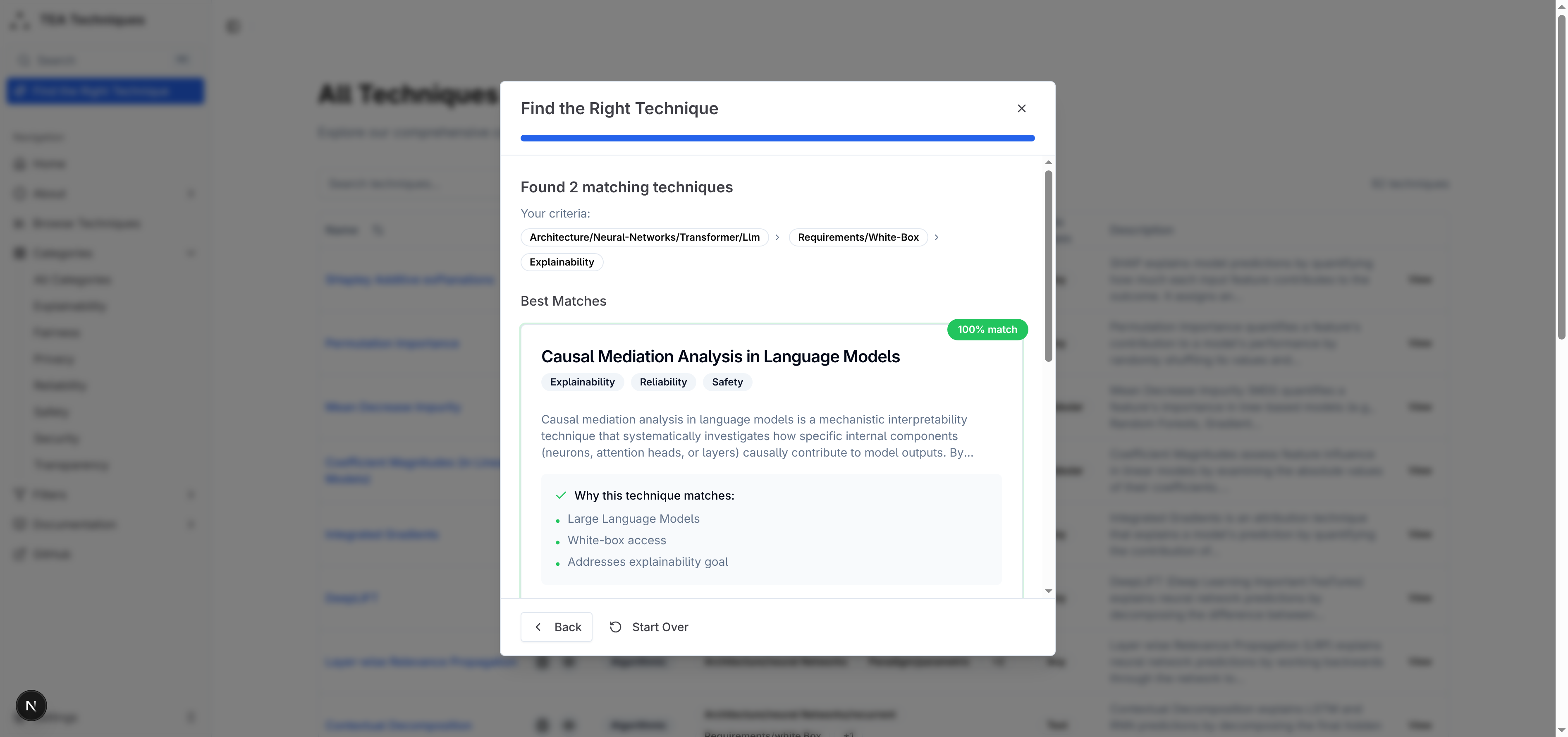
After answering the questions, the wizard displays your matching techniques:
Results Page Features
Your Criteria Summary
- Displays all the selections you made during the wizard
- Each criterion can be clicked to remove it and broaden your search
Match Scores
- Techniques are labelled with match percentages (e.g., "100% match")
- Higher scores indicate better alignment with your requirements
Technique Cards
- Title and tags - Shows the technique name and associated assurance goals
- Description - Brief overview of what the technique does
- Why it matches - Bullet points explaining why this technique was recommended
- View Details - Link to the full technique documentation
Action Buttons
- Refine Results - Go back to adjust your criteria
- Start Over - Begin a new search from scratch
How the Filtering Works
The wizard uses a state machine that:
- Applies filters progressively - Each answer narrows the pool of available techniques
- Skips irrelevant questions - If a question becomes unnecessary based on previous answers, it's automatically skipped
- Maintains state correctly - The back button properly resets filters when navigating backwards
- Optimizes question order - Questions are dynamically reordered based on which will be most informative
Technical Implementation
For developers interested in how the wizard works:
- State Management: XState-based state machine (
lib/wizard/wizard-machine.ts) - Configuration: Centralized question and flow definitions (
lib/wizard/config.ts) - Dynamic Options: Options are computed based on available techniques at each step
- Static Data: Works entirely with pre-generated JSON files (no backend required)
Need Help?
If you're having trouble finding the right techniques or have questions about how to use the wizard:
- Check our Community Contributions page for ways to get help
- Review the Tag Definitions to better understand the categorization system
- Browse the full techniques catalog directly