
Data ingress with SFTP#
Warning
SFTP is not suitable for Tier 2+ data.
The 🧑🔬 Project team’s chosen DPR may wish to carry out the data transfer to the TRE from a remote server and want to use SFTP for this. An additional intermediary storage account can be set up in Azure to enable this.
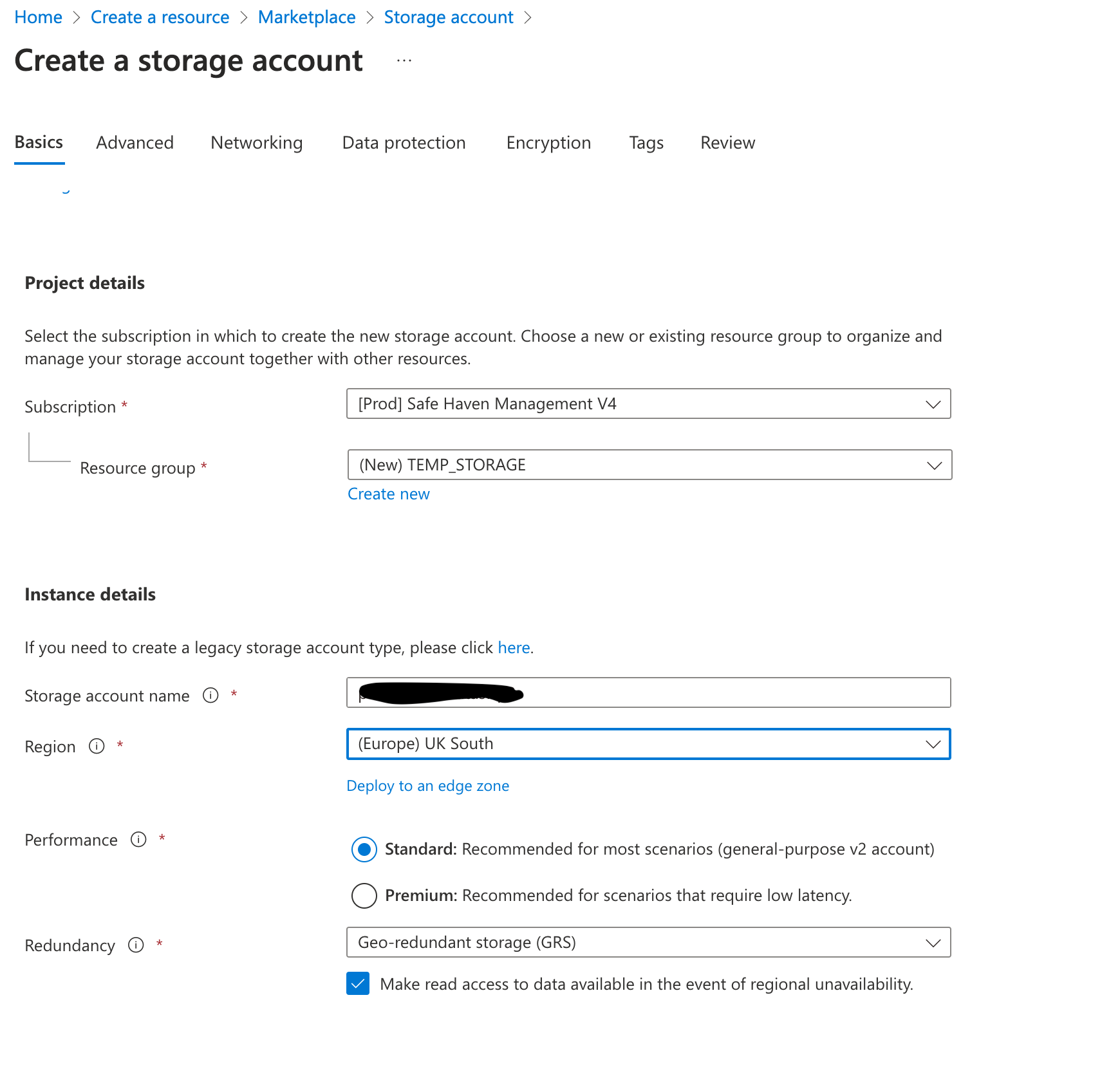
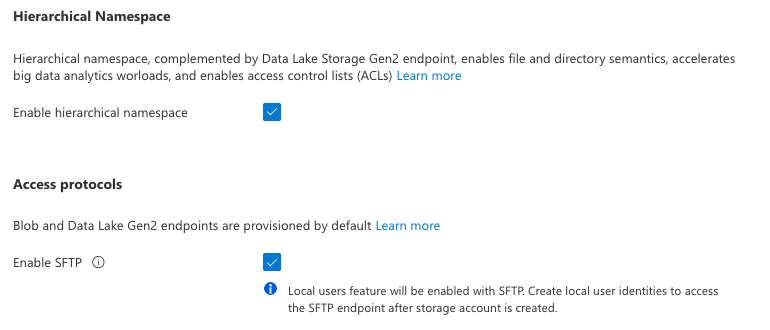
Open the Azure Portal and set up an SFTP enabled storage account called
<SHM ID><SRE ID>datasftpor something similar in the same subscription as the storage account used by the TRE, which should be called<SHM ID><SRE ID>data<hash>(see screenshots below for help)The current production subscription is called
[Prod] Safe Haven Management V4Last edited 2023/05/26Choose
UK Southas the region and create a temporary resource group
In the new storage account, open the
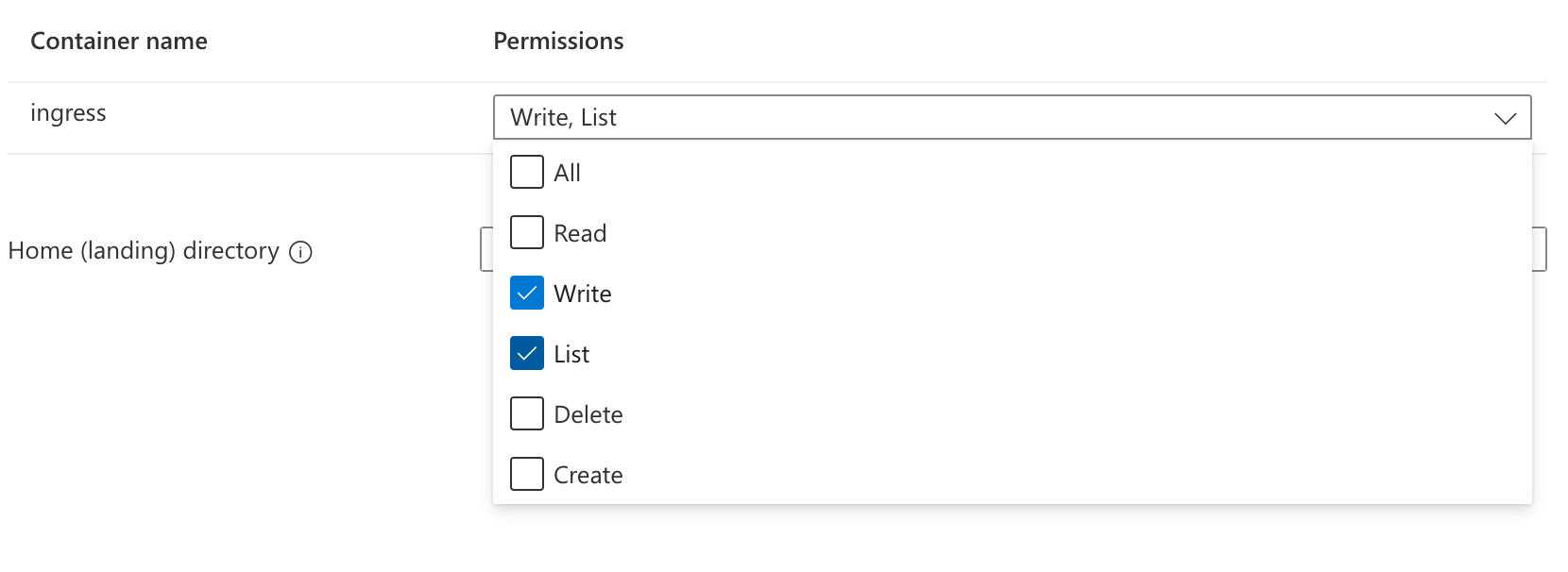
Networkingtab, add the DPR’s IP address underFirewalland hitSaveCreate a container in the storage account with
writeandlistpermissions calledingressClick
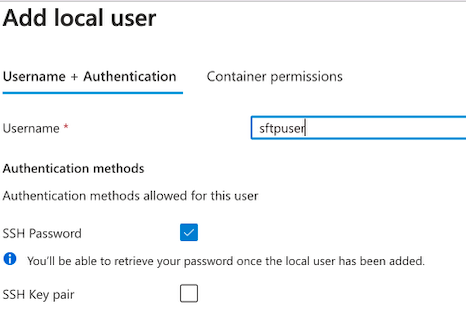
SFTP, thenAdd a local userand create a user calledsftpuseror similar with a passwordSend the password and SFTP connection string to the DPR via secure email
Connection string:
<SHM ID><SRE ID>datasftp.ingress.sftpuser@<SHM ID><SRE ID>datasftp.blob.core.windows.net
Send them this guide on how to upload if needed
e.g. they can do
sftp <conn string>
Once the DPR has uploaded the data, use Azure Storage Explorer to transfer the data to the TRE storage account’s ingress container called
<SHM ID><SRE ID>data<hash>This can be done with a simple copy and paste in ASE if you are authenticated
Once all the data is transferred to the TRE storage account, delete the temporary SFTP storage account